

Cloudflare Tunnel For Comments
A while ago I migrated from Wordpress to static web hosting using Jekyll. Obviously, there is one problem, which is that I can no longer have comments (static website remember). So I need a comments engine that runs on a server somewhere which stores all the user comments and then have a frontend JS code that fetches the comments for the blog post. After experimenting with a few of them (Disqus, Remark42, etc), I eventually went with Commento, running on a small Google Compute Engine (GCE) instance. But some problems that I did not sign up for started showing up soon after.
Hacker hell
The first problem is that now I am expected to run and maintain a cloud server. I have to keep updating the system to make sure I am protected from vulnerabilities. After some time I started seeing a lot of traffic coming from China. It was way too much traffic than I expected for a blog of my size to receive. I eventually figured out that it was some sort of attack or scrapping or something. The only problem is that I get charged for traffic going out from US (where my GCE is running) to China. I started showing ads on my blog hoping to cover some expenses, but the income was peanuts.
So I had to block all that traffic. There is no free solution to get that kind of geo-blocking. I have to pay for it. I decided to go with the poor man’s version of blocking traffic from China by blocking all the known IPs subnets originating from there. My firewall list blew up and it was a lot of effort to keep adding and updating the list.
Later another bunch of hackers started hammering my instance from Brazil around the time of Russia-Ukraine war. Again my GCE bills were increasing. This blog is not supposed to be a drain on my income :). It was supposed to be a side project to help others. I had to redo the same thing again for these hackers. Identify all the IPs and block them.
After a few months during the Iran-US war I got a lot of hacker traffic from Iraq, Iran, Turkey and other countries. This is becoming a huge firefighting operation for me. So I wrote a script that would automatically find these IPs and their subnets. Then I copy paste the subnets into the firewall config in google cloud console.
import time
import random
import requests
import os

print('\nFinding hacker ips...')
os.system('sudo iftop -n -N -t -o source -L 1000 -s 10 2>/dev/null | head -n -9 | tail -n +4 > /tmp/hacker_ips.txt')

filename = '/tmp/hacker_ips.txt'
with open(filename, 'r') as f:
  total = len(f.readlines())
if total < 4:
  print(f'Found only {total} IP(s). Doesn\'t seem like there is a hacker attack.\n')
  exit(0)

count = 0
ip_map = {}
with open(filename, 'r') as f:
  for line in f:
    ip = line.strip().split(' ', 1)[0].strip()
    count += 1
    print(f'[{count:3}/{total:3}] Looking up: {ip}')
    response = requests.get('https://api.ipapi.is/?q=' + ip)
    if response.status_code != 200:
      print('Unable to fetch subnet')
      break
    subnet_json = response.json()
    if subnet_json['is_bogon']:
      continue
    country_code = subnet_json['location']['country_code']
    if not country_code in ip_map:
      ip_map[country_code] = set()
    ip_map[country_code].add(subnet_json['asn']['route'])
    sleep_time_ms = random.randrange(300, 1000)
    time.sleep(sleep_time_ms / 1000)

print()
for country_code in ip_map:
  print(country_code)
  print(', '.join(ip_map[country_code]))
  print()
On running the script you get an output that looks something like this:
Finding hacker ips...
[  1/ 20] Looking up: ???.???.???.???
...
[ 20/ 20] Looking up: 93.177.103.???

IN
???.???.???.0/24

TR
31.210.55.0/24, 45.158.14.0/24, 78.135.83.0/24, 93.177.103.0/24, 31.210.42.0/24, 78.135.82.0/24

DE
62.76.230.0/24
You will notice above that there are 20 IPs accessing comments of my blog. That is a lot of traffic. I usually have 0 or 1 user at a time. Notice a whole bunch of the IPs come from subnets belonging to country code TR (Turkey). So I blocked all those in the firewall. Meanwhile my firewall list is becoming larger and larger.
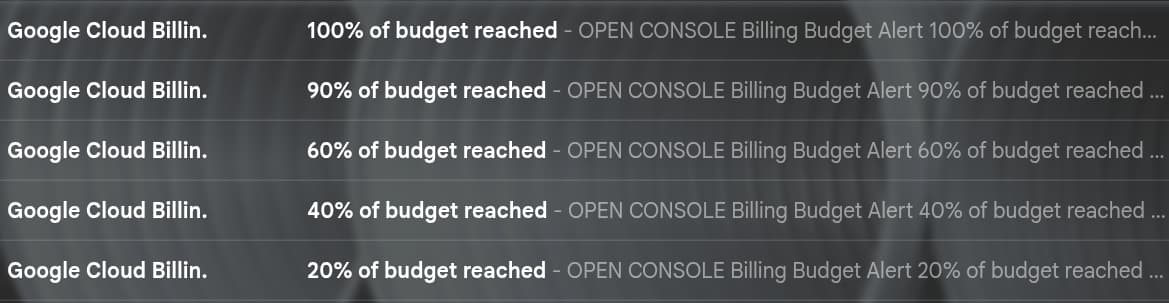
All this effort was still fine. But some change in google cloud billing related to “Networking Security DNS Armor Advanced Threat Detection” caused my bills to consume 100% of my budget in just 7 hours! A budget that usually lasts more than a year cannot be consumed in such short time.
That was the last straw. I’ve had it with GCE. So I decided to shut it down. But I wanted to still keep the comments section in my blog in case someone wanted to post something. Since I have been dabbling with homelab and docker containers for a while now I thought I should run commento in a docker container and serve the traffic. Since I have very low traffic coming to my blog, both my internet as well and my homelab PC should be able to handle the load without costing me a penny.
There is one problem however. I did not want to expose my homelab IP to the public network. So how can I serve the traffic coming from the internet? More over, my internet service provider uses CGNAT so it is not even possible to expose my IP address. So I decided to finally try this Cloudflare tunnel a try. I have been reading about it but did not find a good enough reason to use it, until now.
Migrate Commento to Homelab
I first needed to move Commento with all the data from GCE to Homelab. Commento depends on PostgresSQL to store all the comments. So I need to bring up those two services. Here I faced the first problem. The docker image for Commento is only available for x86/amd64. My Homelab is a ARM based device running aarch64 bit instructions. Thankfully after some searching on Docker Hub, I found an aarch64 image. So I used the following docker compose config to launch Postgres and Commento.
x-common-keys: &common-keys
  pull_policy: always
  restart: unless-stopped
  env_file:
    - common.env
    - id.env

services:
  commento-db:
    <<: *common-keys
    container_name: commento-db
    image: postgres:17-alpine
    ports:
      - "5432:5432"
    environment:
      POSTGRES_DB: 'commento'
      POSTGRES_USER: 'commento'
      POSTGRES_PASSWORD: 'xxx'
    volumes:
      - $CONTAINER_DIR/commento-db:/var/lib/postgresql/data

  commento:
    <<: *common-keys
    container_name: commento
    image: caroga/commentoplusplus:v1.8.7
    ports:
      - "8180:8080"
    environment:
      COMMENTO_ORIGIN: 'https://my-origin'
      COMMENTO_BIND_ADDRESS: '0.0.0.0'
      COMMENTO_PORT: '8080'
      COMMENTO_POSTGRES: 'postgres://commento:xxx@commento-db:5432/commento?sslmode=disable'
      COMMENTO_CDN_PREFIX: 'https://my-origin'
      COMMENTO_FORBID_NEW_OWNERS: 'true'
      COMMENTO_GZIP_STATIC: 'true'
      COMMENTO_SMTP_HOST: 'host'
      COMMENTO_SMTP_USERNAME: 'username'
      COMMENTO_SMTP_PASSWORD: 'password'
      COMMENTO_SMTP_PORT: '587'
      COMMENTO_SMTP_FROM_ADDRESS: 'email'
      USE_STARTTLS: 'true'
      COMMENTO_GOOGLE_KEY: 'key'
      COMMENTO_GOOGLE_SECRET: 'secret'
      COMMENTO_AKISMET_KEY: 'key'
    depends_on:
      - commento-db

networks:
  default:
    name: blog_network
To make sure the comments engine is working as expected, I first exposed the IP of my HomeLab running to my laptop using Zerotier VPN. Once I got it working, I needed to copy over all the comments from the DB in GCE to my local instance. I exported the tables on GCE using the following command
pg_dump -h localhost -U commento -d commento > comments.sql
I copied over the dump from GCE to my local machine.
gcloud compute scp --recurse --zone "xxx" --project "xxx" username@gce:~/comments.sql .
Next I copied over the data from the dump
psql commento < comments.sql
Refreshed the webpage and lo and behold! All the old comments are showing up on my blog post. Now, this works for me alone on a VPN. How do I expose it to the public web? Enter CloudFlare Tunnel
Tunnel Commento Traffic Using CloudFlare
For this I needed to create a tunnel in my CloudFlare account. First I removed the DNS A record that I had earlier which was pointing to GCE, and then followed this video. I got it up and running after adding the following docker compose config.
  cloudflare-tunnel:
    <<: *common-keys
    container_name: cloudflare-tunnel
    image: cloudflare/cloudflared:latest
    command: tunnel --no-autoupdate run --token token
In cloudflare tunnel setup, I used http://commento:8080 to allow cloudflare access the comments engine. Since both containers are running in the same network blog_network) they can see each other. At this point my Homelab is serving all the comments traffic to the internet. I made sure everything was working fine by writing a couple of comments and making sure that I am receiving emails when a user posts a comment etc. All is in good order.
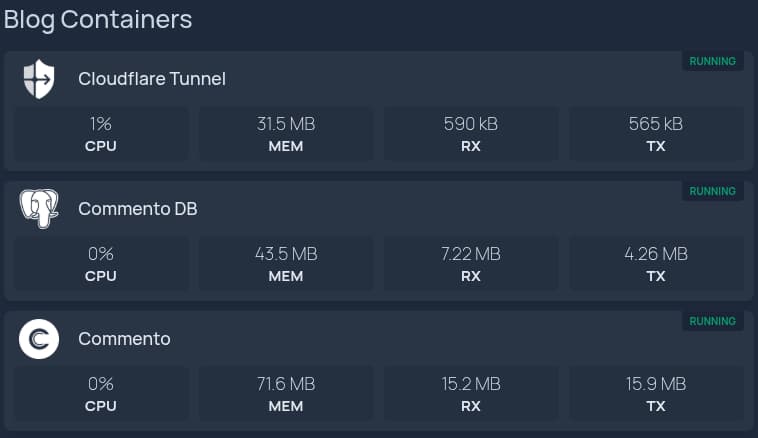
A few things to note. Routing traffic via CloudFlare means that it can see all the data going back and forth (privacy concern). It is not a problem for me because none of it contains any sensitive data. It is all public information anyway (comments are visible to everyone). Another concern with this setup is that the availability of comments depends on my Homelab running and my internet working. So if my network is down or if I am restarting my Homelab, the comments section will not load on my blog. Finally these services consumes more resources on my machine but it is not too bad.
Finally I turned down my GCE instance. Phew! No more maintenance work. Famous last words.